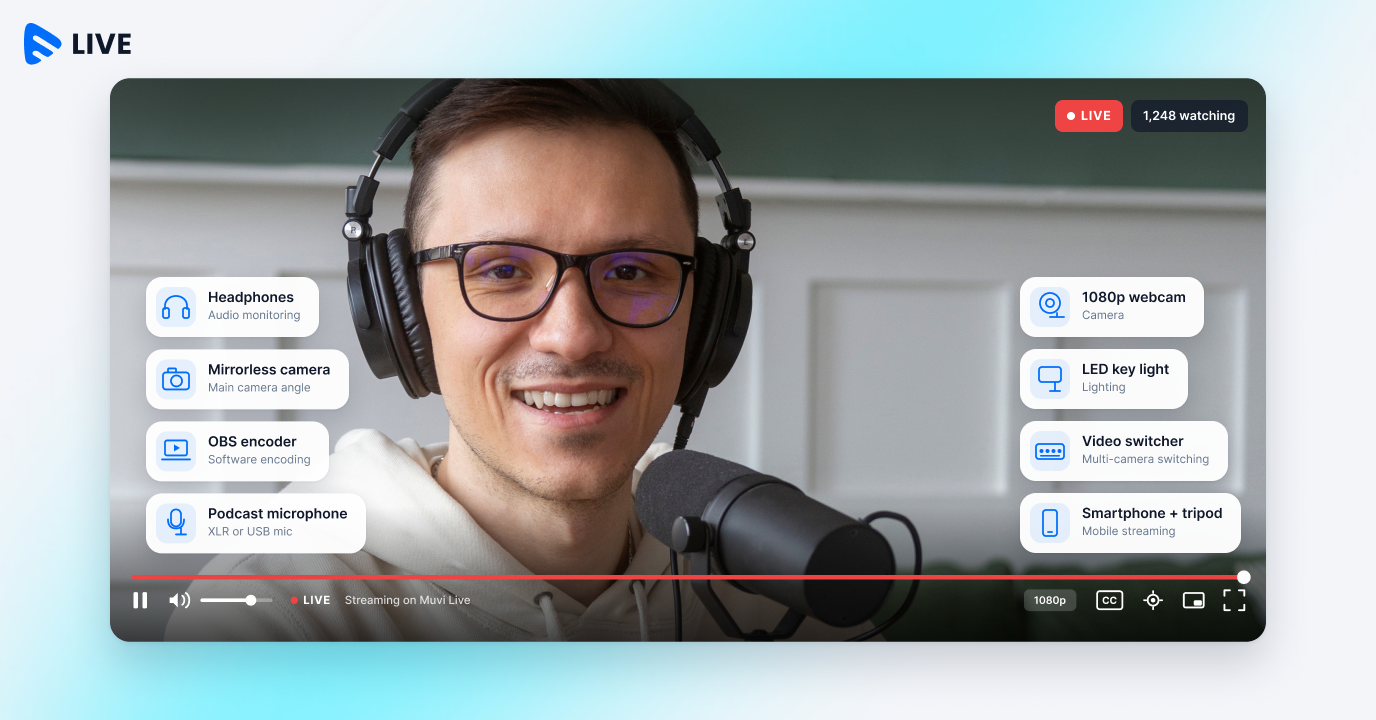
Live streaming is one of the most sought-after internet professions today. It impacts many industries, from esports to corporate events. A good live stream depends on what you stream, where you stream and what are the equipments you are using. This guide lists the gear for each budget, with typical prices, so you buy only what you need.
You will find three ready-made kits, plus advice on cameras, audio, lighting, encoders, switchers, and internet speed. However, gear alone won’t help you go live smoothly. You also need a live streaming platform to deliver your video to viewers. If you are new to the basics, start with our explainer on what live streaming is and how it works.
Key Live Streaming Equipment Components for Successful Live Streams
Best Cameras for Live Streaming
The camera is the most important visual equipment and a key component of any live streaming platform. Your camera sets the ceiling for picture quality, but most streams do not need an expensive one. Match the camera to where and how you stream. WIth more and more apps and software-driven encoding and quality corrections, live streaming, if done at a small scale- we are not talking about the weekend soccer game- can be achieved with a fairly low budget.
Camera type | Best for | Typical price | Keep in mind |
|---|
Smartphone | Mobile streams and interviews on location | $0 if you own one | The battery drains fast. Use a power bank. |
USB webcam | Desk streams, webinars, classes | $70–$150 | Plug and play, but small sensors struggle in dim rooms. |
Camcorder or vlogging camera | Events, church services, lectures | $400–$800 | Long battery life and optical zoom. |
Mirrorless camera with clean HDMI | The best image quality | $500–$1,500+ | Needs a capture card or a switcher. |
PTZ camera | Fixed rooms, churches, lecture halls | $800–$1,500+ | One operator controls pan, tilt and zoom remotely. |
Each of these categories of cameras is great for their use cases. Mobile phones today offer great picture quality; webcams offer better stability, and vlogging cameras like the GoPro have great video even during live action recordings.
Microphones for Live Streaming
While great visuals bring viewers, good quality audio retains them. Viewers often forgive soft video faster than bad audio. It is therefore advised that you must spend money first on a microphone before you think of spending on a camera.
Bonus Tip: While a mobile phone’s camera can work for live streaming, the same cannot be said for microphones. Phone microphones are bad and cannot capture good audio, as it’s not their purpose.
Which brings us to the next important question. How does one select the right microphone and honestly the correct answer to this is, its purpose driven. Microphones are incredibly use case specific. Some are built to support drum kits, while some are vocal microphones specially designed to capture the entire voice range, and then there are microphones which are built to record conversations. Every microphone is different, but for live streaming, let’s focus on mics that are to be used for streaming conversations. Here are a few examples along with comparisons.
Mic type | Best for | Typical price | Notes |
|---|
Lavalier (clip-on) | Presenters on camera, phone streams | $25–$100 | Wireless systems cost more but let you move. |
USB microphone | Desk streams, classes, podcasts | $30–$170 | Plugs straight into a computer. Examples: FIFINE K669B, Samson Q2U, Rode NT-USB Mini, Blue Yeti X. |
XLR microphone with audio interface | Events, panels, stages | $150–$400 | Rejects room noise well. The Shure SM58 is a long-time live favorite. |
Wireless handheld or bodypack | Moving speakers | $100–$400 | Check range and frequency limits at your venue. |
Lights, Tripods, Gimbals & Action
Good light makes a cheap camera look better. Place one soft, dimmable light slightly above eye level and about 45 degrees to one side of your face. Add a second, dimmer light on the other side to soften shadows. Use lights with the same color temperature, and avoid mixing daylight from a window with warm bulbs. These are the basic tips, but if you want to know which lights, the answer is not simple.
Lighting is a very creative process. That’s the reason you see that every creator looks different on the screen. It’s because of the lights. The basic law is what we explained above and anything after that you upto the creativity of the person streaming.
Coming to other equipment, a tripod keeps your shot steady. A phone tripod with a clamp costs $20 to $40, and a sturdier camera tripod costs $50 to $100. A 3-axis phone gimbal, such as the DJI OM series, costs roughly $100 to $160 and smooths walking shots. Skip the gimbal if your camera stays in one place.
Encoders, Switchers & Capture Cards
Live streaming is not the same as recording a video and uploading it. Livestream means a video is shot and uploaded simultaneously, allowing viewers to watch in real time. To make this possible, you need a few other pieces of equipment such as:
Software Encoders: OBS Studio is free and open source. It lets you build scenes, add overlays, and mix several sources. Paid tools such as vMix and Wirecast add features for larger productions. A software encoder runs on your computer’s processor, so a recent multi-core processor and 16 GB of RAM keep it smooth.
Hardware Encoders: A hardware encoder is a standalone box that encodes video without using your computer. All-in-one units combine a switcher, an encoder and a monitor. They cost more than a capture card, and they suit events where reliability matters most.
Video Switchers: A switcher lets you cut between cameras and slides live. The Blackmagic ATEM Mini costs about $280 to $300 and has four HDMI inputs. The ATEM Mini Pro costs about $495 and adds recording and direct streaming over Ethernet.
Capture Cards: A capture card turns an HDMI camera into a USB source your computer can read. The Elgato Cam Link 4K is a popular option at roughly $130. You do not need one if your switcher already outputs over USB.
Internet: Powerhouse of Livestreaming
Internet speeds decide how your live streams look. A bad upload speed will result in poor video quality for the end user. Similarly, good internet speed ensures that your audience gets a stunning viewing experience. It is highly recommended that you always do a network test before going live and keep a backup in case anything goes wrong.
Based on the type of video you’re trying to stream, here is a quick requirements sheet to help you decide your bandwidth.
Resolution and frame rate | Bitrate range (H.264) | Minimum upload speed to aim for |
|---|
720p, 30 fps | 3–8 Mbps | 6 Mbps |
1080p, 30 fps | 5–14 Mbps | 10 Mbps |
1080p, 60 fps | 6–17 Mbps | 12 Mbps |
4K, 30 fps | 11–42 Mbps | 22 Mbps |
Bonus Tip: Start 10 minutes before your show goes live. Test Everything!
Live Streaming Equipment at a Glance
First things first, to start a live stream, there are a few basic requirements that remain common across all categories of live streaming setups and equipment that we saw above. You need a camera, a microphone, light, a stable internet connection, an encoder, and a streaming platform. However, this is just the beginning. The process becomes complex as well as expensive as we start adding better equipment. Here are 3 broad categories of live streaming equipment you can set up.
Kit | Best for | Typical total | Camera |
|---|
$250 phone kit | Solo creators, mobile and on-location streams, first tests | $110–$230 | Your smartphone |
$500 desktop kit | Webinars, classes, interviews, talk shows | $205–$490 | 1080p webcam |
$1,000+ multi-camera kit | Events, church services, panels, sports | $1,100–$1,760 | Mirrorless or camcorder, plus a second angle |
$250 Phone Kit: Easy, Cheap & Fast to Deploy
The $250 streaming kit is for beginners but can also be used by professionals depending on the use case. A modern smartphone can shoot 1080p and if the camera does not have to move, its a great option for social media livestreams. The rule as we said before remains the same. Upgrade the audio first.
Basic Mobile streaming kits should include:
- Smartphone with a good rear camera
- A basic tripod with adjustable height and grip
- A clip-on or wireless lavinar microphone which is compatible with your smartphone
- Lights as per budget that have dimming and adjustable color temperature
- A powerbank
- Live streaming mobile app like Muvi Live that works directly from mobile device
$500 Desktop Kit: For Professionals
An upgrade to the otherwise mobile based live streaming, the desktop kit takes livestreaming to a more professional level. This kit suits webinars, online classes, interviews etc and is generally more stable due to the presence of encoders and better processing power of the desktop.
- USB webcam that can shoot sharp 1080p at 30fps. Popular picks include the Logitech C922 Pro and the Elgato Facecam MK.2.
- FIFINE K669B and Samson Q2U are budget picks; the Rode NT-USB Mini sits at the top of this range for usb based microphones
- A basic pair of headphones to monitor audio without feeding sound back to the microphone
- A better lighting setup upgrade
- OBS Studio or other software based encoders to streamline livestreaming process
$1000 Multi-Cam Setup: Costlier Equipment, Professional Livestreams
Bigger events require more than just a webcam. Events such as church services, panels and sports need more than one angle and better audio. This kit adds a main camera, a second angle and a video switcher, so you can cut between shots live.
Here are some basic requirements for a multicamera, livestreaming setup:
Item | Typical Price | What to look for |
Second angle: webcam, camcorder or phone | $80–$200 | A wide shot of the room or stage. |
Video switcher | $280–$300 | The Blackmagic ATEM Mini has four HDMI inputs and shows up on your computer as a webcam. |
Microphone | $70–$200 | An XLR dynamic mic with an audio interface, or a wireless lavalier for presenters who move. |
Two LED panels | $100–$220 | Even light across your presenters. |
Two tripods or stands | $50–$100 | Sturdy enough for your camera and lens. |
HDMI cables and adapters | $20–$40 | Buy spares. Cables fail at the worst moment. |
Total | $1,100–$1,760 | |
Live Streaming Setup by Use Case
Church Services
Mount one or two fixed cameras at the back of the room, or use a PTZ camera that one volunteer can control. Feed audio from the soundboard into your switcher or audio interface, so viewers hear the same mix as the congregation. Read our guide to equipment for live streaming church services, or see how Muvi Live supports live streaming for churches.
Events and Conferences
Use two or three cameras, a switcher, XLR mics and a wired connection with a backup line. Corporate events such as product launches and town halls can use DRM-secured streams to keep content private. Explore live streaming for enterprises, or read how to live stream outdoor events.
Webinars and Online Classes
The $500 desktop kit handles most webinars and classes. Share your screen for slides, and keep your webcam and mic close. Live streaming for education covers how teachers and course creators go live.
Sports
Sports need fast, smooth motion, so stream at 60 frames per second with at least two camera angles. Low latency keeps your stream close to the live action. See how live streaming for sports works on Muvi Live.
Ticketed Concerts and Pay-Per-View
Audio quality matters most for concerts. Use XLR mics or a feed from the front-of-house mixer, plus two or three cameras. A paywall lets viewers buy a ticket and watch instantly. Learn more about paywall live streams.
Muvi Live: Best Live Streaming Software Solution
Muvi Live is a live streaming platform with a built-in CDN, DRM protection and an integrated pay-per-view paywall. It supports RTMP and HLS streaming, and you can stream directly from a webcam or from its mobile app. Recording is included on every plan, and you can try it for 14 days with no credit card required.




Add your comment